 ConSprint Help
Missions, objectives and steps
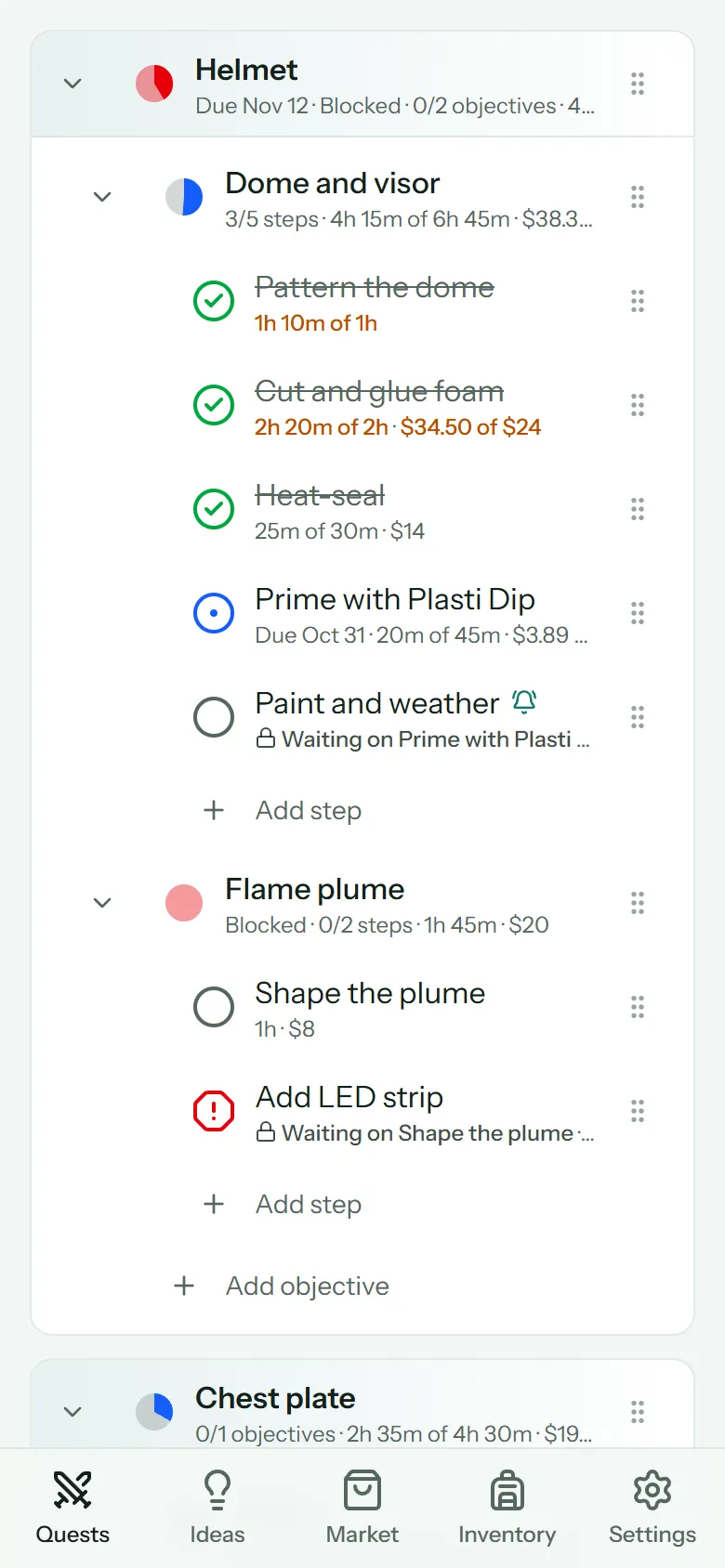
Big builds feel impossible until they're a list of small ones. ConSprint breaks a quest down three levels deep:
| Level | What it is | Example |
|---|---|---|
| Mission | A big piece of the costume | Helmet |
| Objective | A part of that piece | Dome and visor |
| Step | One task you can finish in a sitting or two | Prime with Plasti Dip |
You don't have to go all the way down. A mission with nothing under it yet is fine, and so is an objective with no steps. Break things down when you're ready.
Add them
On a quest page:
- Add mission at the bottom of the list adds a mission.
- Add objective at the bottom of a mission adds an objective to it.
- Add step at the bottom of an objective adds a step to it.
Give each one a name, and a time and cost guess if you have one. See Estimates and progress.
Finish a step
Tap the circle next to a step to mark it done. Tap it again to undo.
Missions and objectives with things under them show a progress pie instead of a circle: it fills in as their steps get done. Tap the pie to open its details.
| Icon | Means |
|---|---|
| Empty circle | To do |
| Blue circle with a dot | In progress |
| Dashed circle | Backlog: someday, not now |
| Red octagon with ! | Blocked: something's stopping you |
| Green check | Done |
Step details
Tap a step's name to open its details. On a computer they open on the right; on a phone they slide up from the bottom.
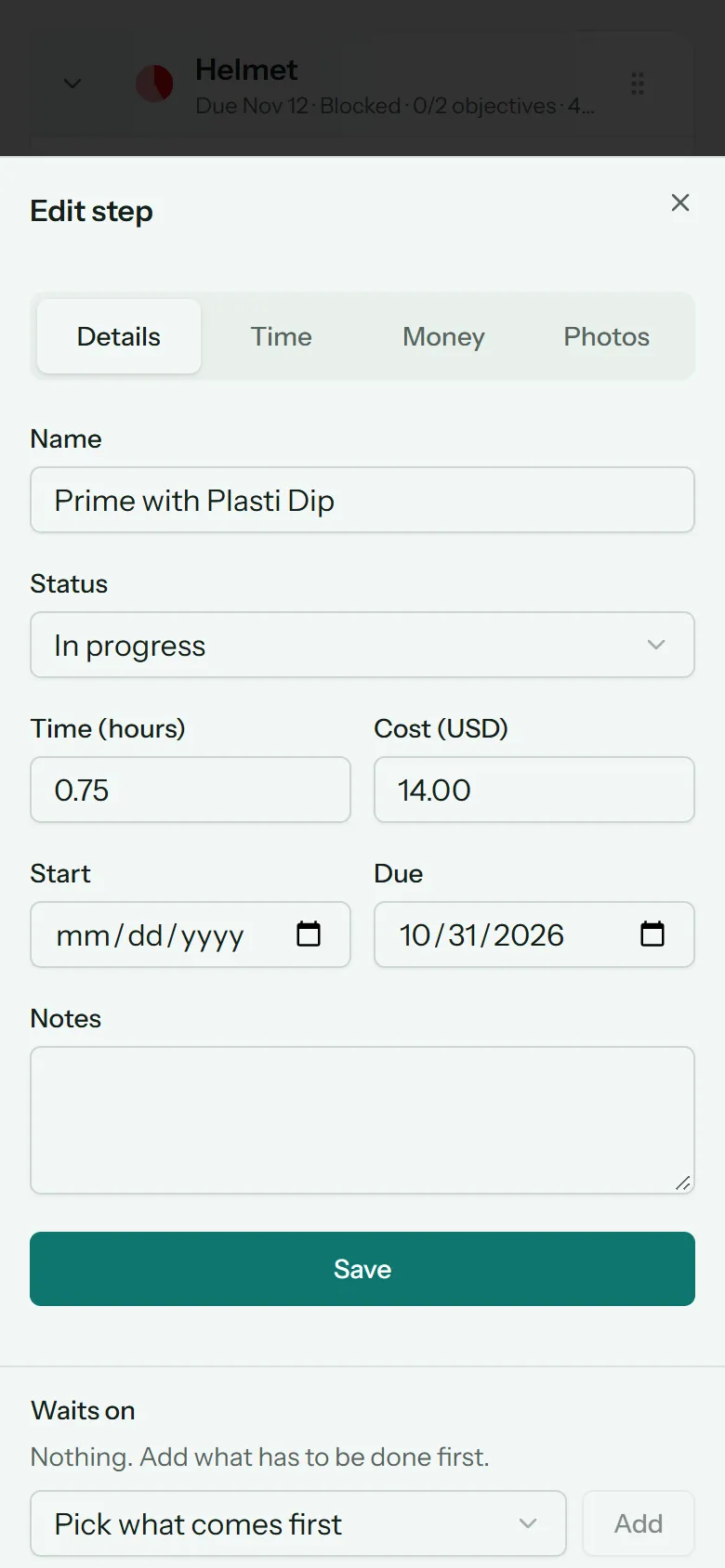
The details have four tabs:
- Details: the name, Status, time and cost estimates, Start and Due dates, and Notes. Below them: what it waits on, its reminders, and where to move it.
- Time: log time or start the timer.
- Money: materials used and expenses.
- Photos: reference and progress photos for this step.
Status
A step is To do, In progress, Blocked, Backlog or Done. Set it with Status.
A mission's or objective's status comes from its steps: done when they're all done, blocked if any is blocked, in progress once anything has started.
Dates
- Start is when you plan to begin, for your own planning.
- Due is when it has to be done. The schedule puts it in that week, overdue steps show in red, and reminders can count down to it.
A mission or objective can have a due date too, as a deadline for everything under it.
Waits on
Some steps can't start until another is done: you can't paint before you prime. Under Waits on, pick what has to come first and tap Add.
A step that's waiting shows a lock and "Waiting on …" in the list, and the schedule won't put it before the step it waits on. To remove a link, tap the button next to it under Waits on.
Reorder and move
- Drag the handle (⋮⋮) on the right of a row to change the order.
- To move something to another mission or objective, open its details and use Move to.
- Tap the arrow on the left of a mission or objective to fold it closed.
Delete
Open the details and tap Delete step (or mission, or objective) at the bottom, then tap again to confirm. Deleting a mission or objective deletes everything under it, including logged time and photos.