 ConSprint Help
Photos
Pin reference pictures right where you're working, and snap your progress as the costume comes together.
There are two kinds of photo:
- References: what it should look like. Character art, screenshots, other cosplayers' takes.
- Progress: your build, as it happens.
Add photos
- To a step, objective or mission: open its details and go to the Photos tab. Tap Add next to References or Progress.
- To the whole quest: tap the pictures button on the quest page, then Add references or Add progress.
On a phone you can take a photo or pick from your library. You can pick up to 10 at a time. Photos take a moment to process after they upload.
The quest's photos
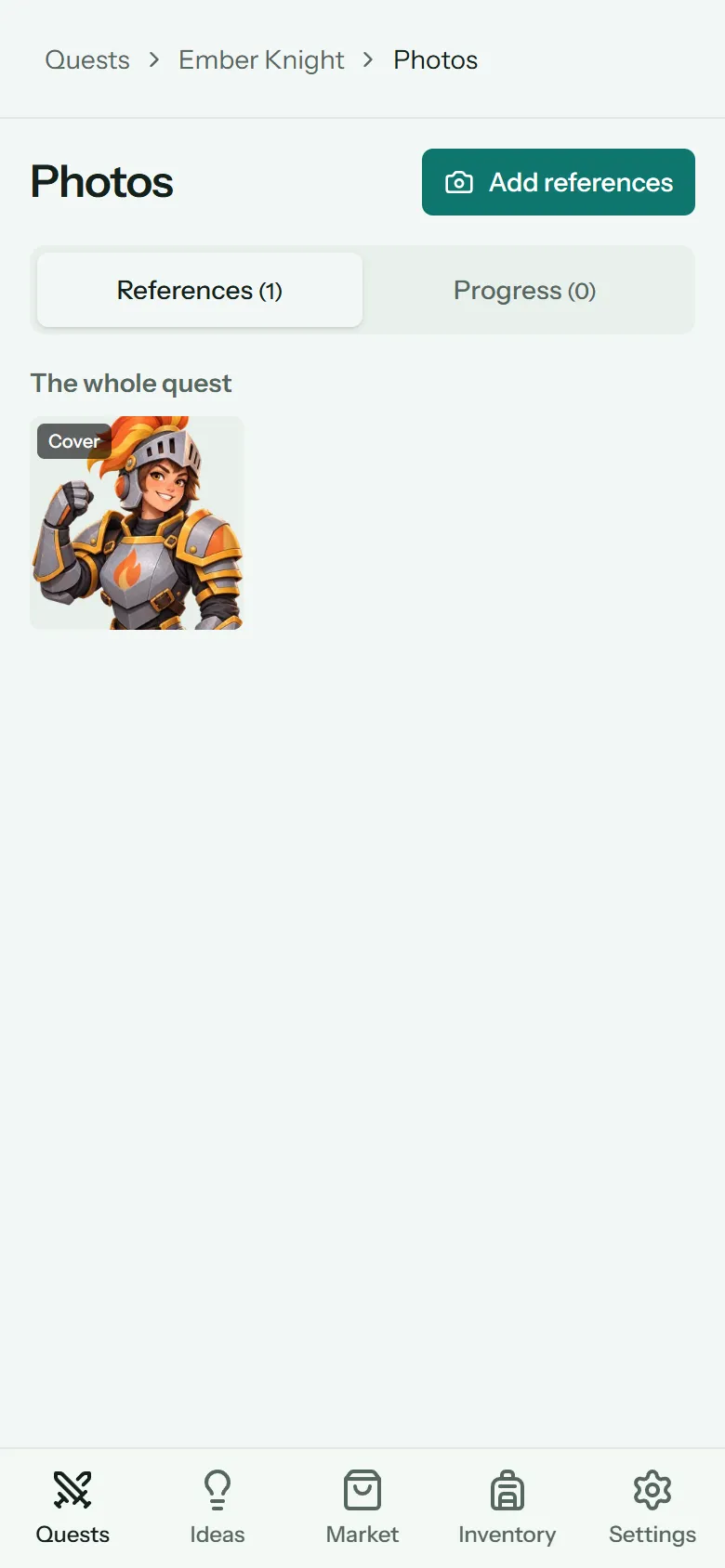
The pictures button on a quest page shows every photo in the quest, on two tabs:
- References, grouped by the part they're on (the whole quest first).
- Progress, as a timeline, newest day first, so you can watch the build come together.
Look at a photo
Tap a photo to open it. From there you can:
- tap the arrows on either side to go through the others,
- add a caption,
- switch it between reference and progress,
- make it the quest's cover (the picture on its card and page),
- open it Full size,
- or Delete photo (tap twice to confirm).
Good to know
- Location is removed. Photos from phones often carry hidden details like where they were taken. ConSprint strips them all when you upload.
- Photos are private. Only you can see them. They're never part of a shared build.
- Space: each account has 1 GB of photo storage, which is a lot of photos. See how much you've used under Settings › Profile. Uploads stop once it's full, until you delete some.
- Phone photos in HEIC, along with JPG, PNG, WebP, AVIF and GIF, all work, up to 15 MB each.
- Covers are never cropped: the whole picture shows.