 ConSprint Help
Quests
A quest is one costume: everything you need to build it, the con you're building it for, and your budget. Your dashboard lists them all.
The dashboard
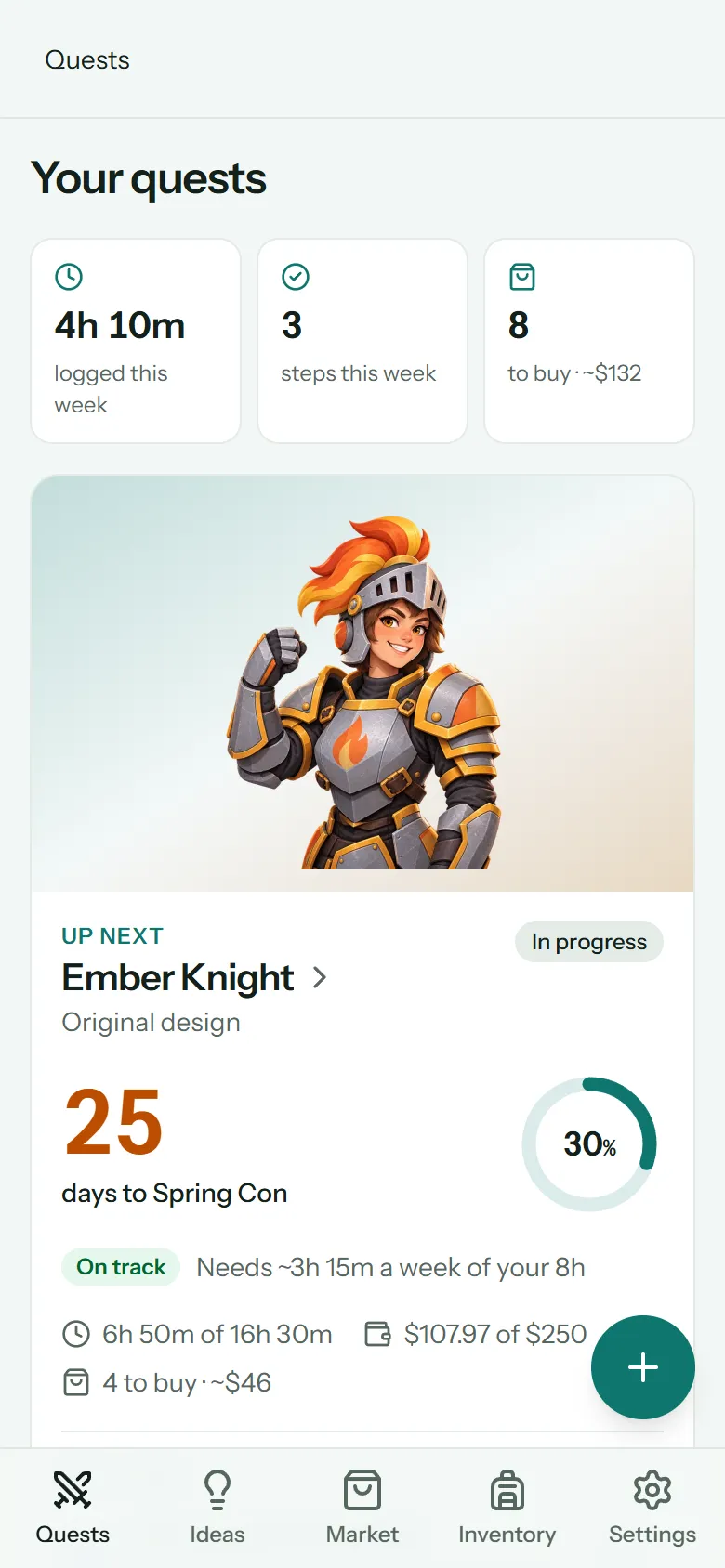
At the top, three numbers for the last 7 days: hours logged, steps finished, and how much is left to buy across all your quests.
Your quest with the soonest con is Up next, shown big: its countdown, how far along it is, whether you're on track, time and money against your estimates, and the next few steps to work on. Tap a step's circle to finish it, or the ▷ button to start the timer on it.
Your other quests are below, soonest con first. Finished quests come after the ones you're still working on.
Start a quest
Tap the + button (on a computer, New quest). You can also start one from an idea or copy a friend's shared build.
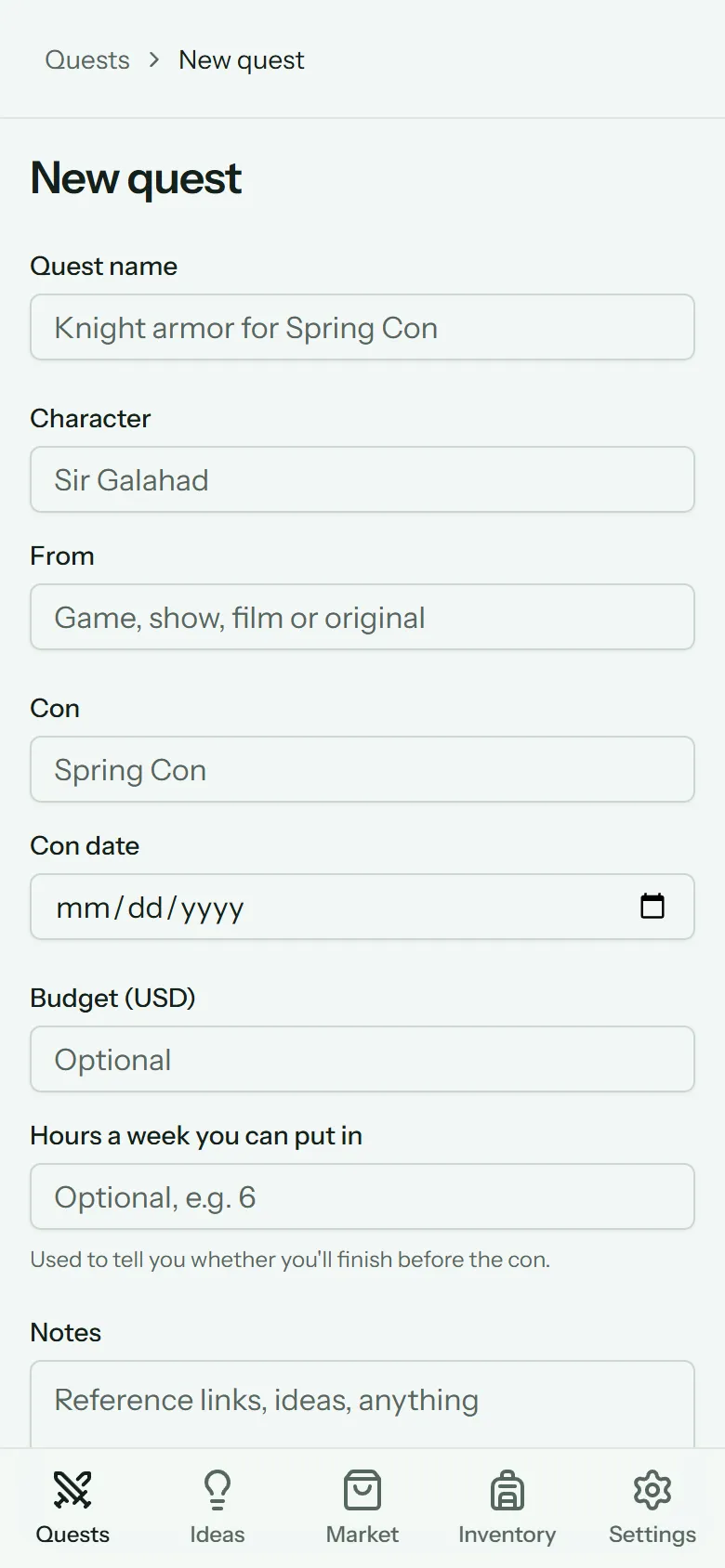
| Field | What it's for |
|---|---|
| Quest name | Whatever you call it, e.g. Knight armor for Spring Con |
| Character | Who you're cosplaying |
| From | The game, show, film, or Original |
| Con and Con date | The deadline. The countdown and your pace come from the date |
| Budget | What you plan to spend, in your currency. Optional |
| Hours a week you can put in | Used to tell you whether you'll finish in time. Optional, but worth it |
| Notes | Anything at all |
Only the name is required. Fill in the rest whenever you know it.
The quest page
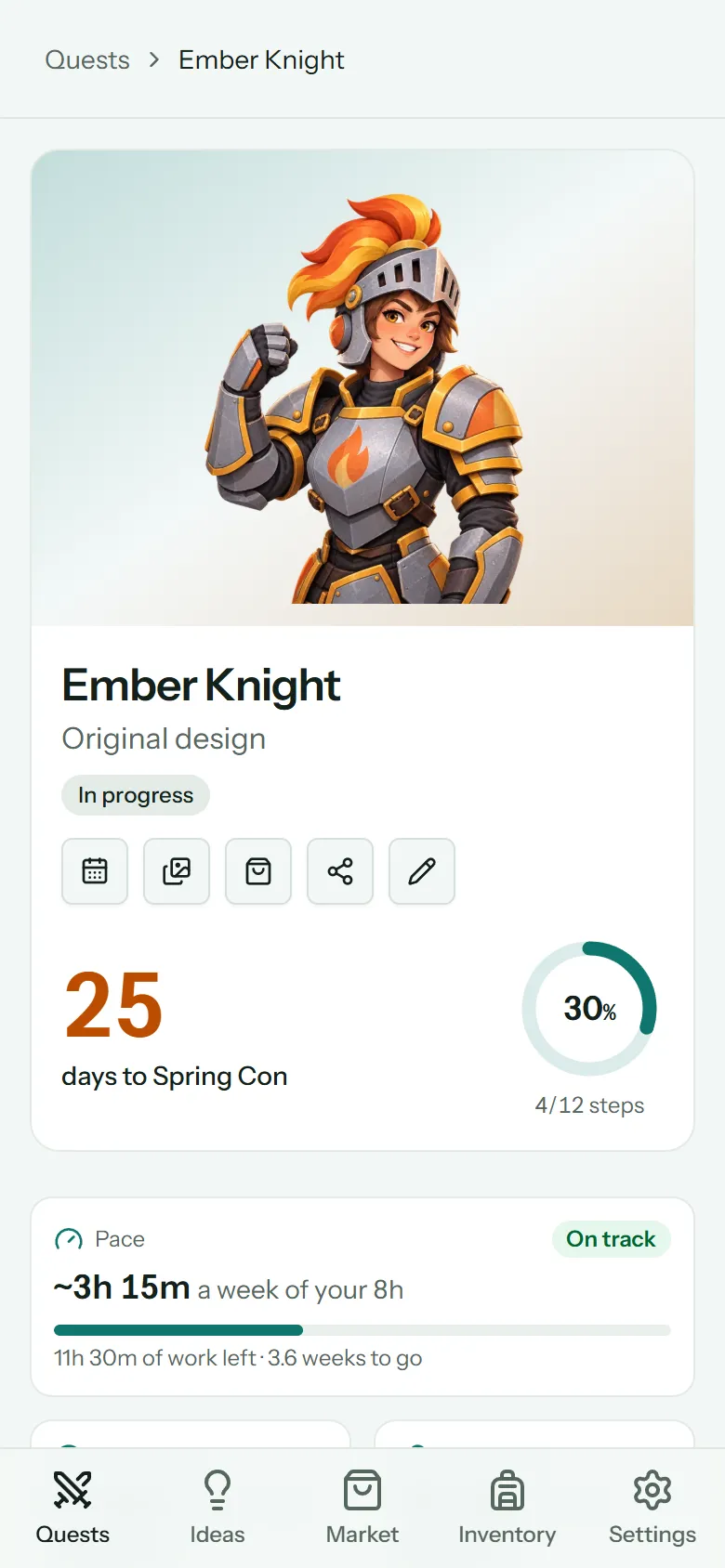
Tap a quest to open it. At the top: its cover photo, the countdown to the con, and its progress. The buttons under the title open the quest's:
| Button | Opens |
|---|---|
| Calendar | Schedule, week by week |
| Pictures | Photos |
| Bag | Its shopping list in the Market |
| Share | Sharing it as a link |
| Pencil | Editing the quest's details |
Below are the pace card, time and cost against your estimates, what you've bought against your budget, and then the build itself: each mission as a card with its objectives and steps.
At the bottom, a chart compares estimated and actual time (or cost) for each mission, so you can see where your guesses were off.
Status
A quest is Planning, In progress, Done or Archived. Change it with the pencil button.
Archived quests are hidden from your dashboard. To see them, use the Show … archived link at the bottom of the dashboard.
Delete a quest
Open the pencil button, tap Delete quest at the bottom, and confirm. Deleting a quest removes it for good, with everything in it: its steps, logged time, expenses, shopping list and photos. Supplies you bought for it stay in your Inventory. If you'd shared it, the link stops working.
Warning
Deleting can't be undone. If you just want it out of the way, set it to Archived instead.