 ConSprint Help
Reminders
Get a notification on your phone or computer before a step is due, or at a time you pick. ConSprint only sends the reminders you set. No newsletters, nagging or "we miss you" messages.
Turn on notifications
Notifications are turned on per device: do it on each phone or computer where you want reminders.
- Open Settings › Notifications.
- Tap Turn on notifications.
- Allow notifications when your browser asks.
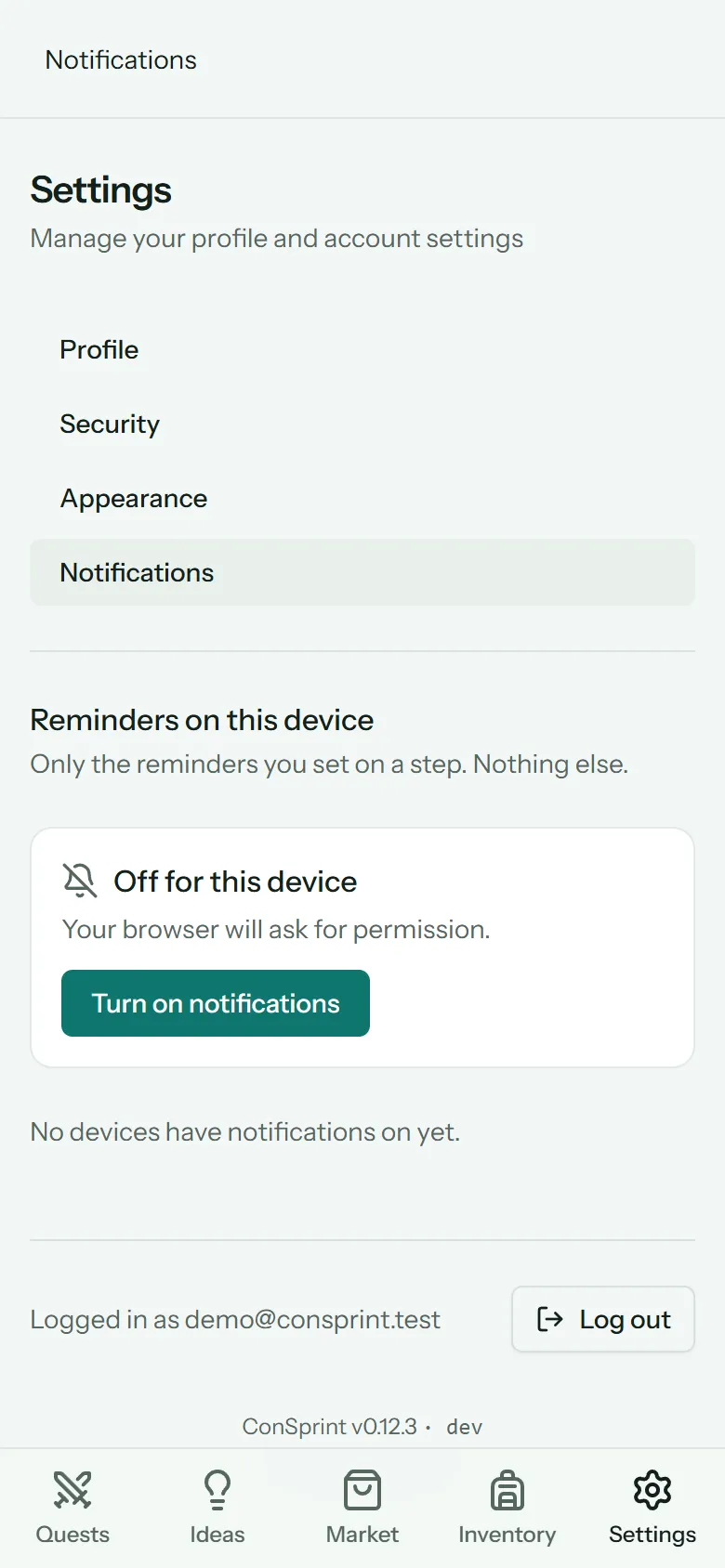
The page lists every device with notifications on. Turn one off there any time.
Note
On iPhone and iPad, notifications only work once ConSprint is installed on your home screen. Open the installed app, then turn them on.
Set a reminder
Open a step's details and scroll to Reminders. Pick a kind:
- Before it's due: On the day, 1 day before, 2 days before, 3 days before or 1 week before the step's due date, at the time you choose. The step needs a Due date.
- At a set time: a date and time of your choosing.
Tap Add. A step can have more than one reminder.
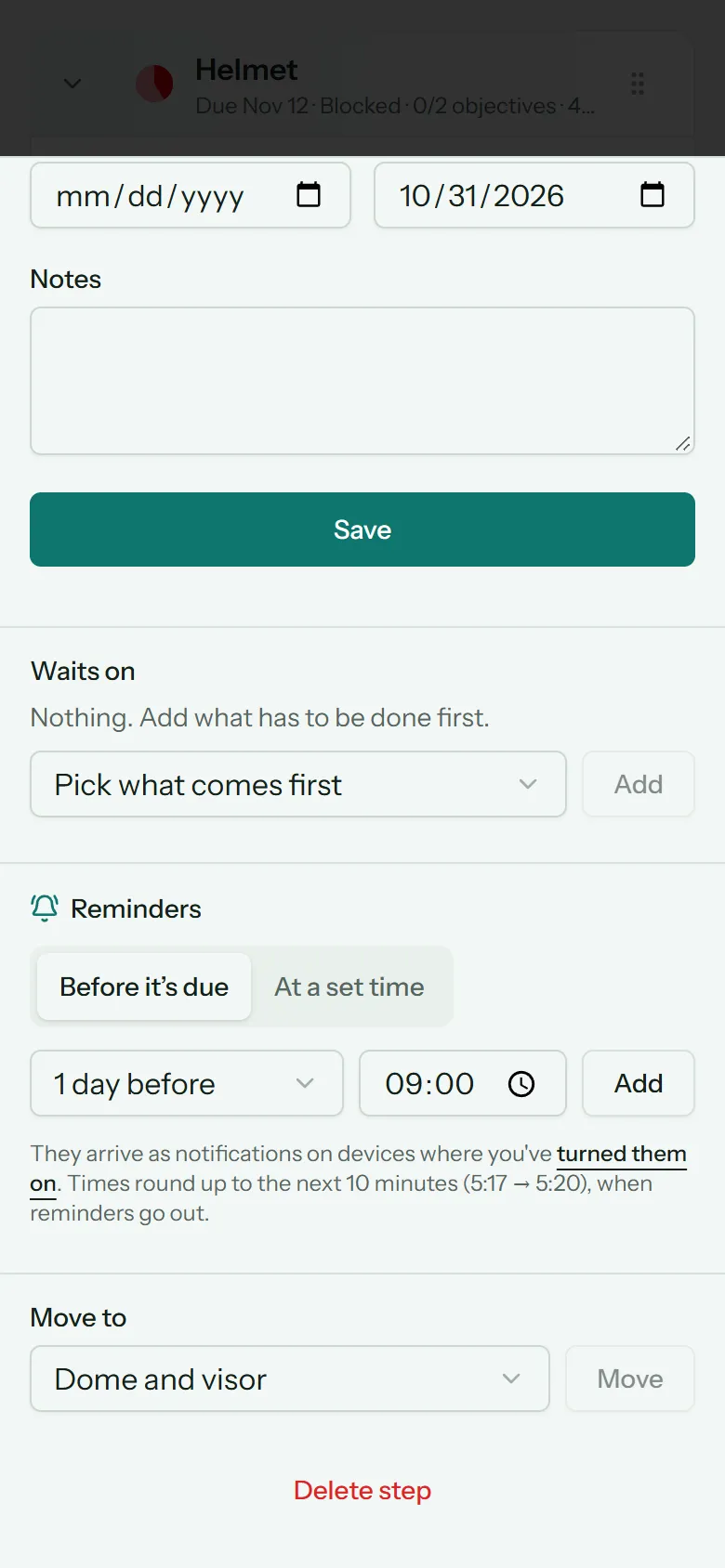
Steps with a reminder show a bell in the list. Reminders that have gone out are marked Sent. Remove one with the button next to it.
Good to know
- Reminders go out every 10 minutes, so times round up to the next 10 minutes: 5:17 arrives at 5:20.
- Before it's due reminders follow the step: change its due date, or your timezone, and the reminder moves with it.
- Tapping a notification opens the step.
- Finished steps don't send reminders, and neither do steps in a quest that's Done or Archived.